PivoHub allows you to add returns/credits related to an order in order to reduce its total cost. Here is a guide to help you better understand and use this feature as a seller on the platform.
Thanks to this feature, you will be able to organize pickups, whether with your distributor or your own delivery team. You also have the option to decide whether the return or credit in question affects your inventory or not.
ℹ️ If the order concerns a distributor that is not part of your company, the pickup option must be enabled by the distributor thru their settings.
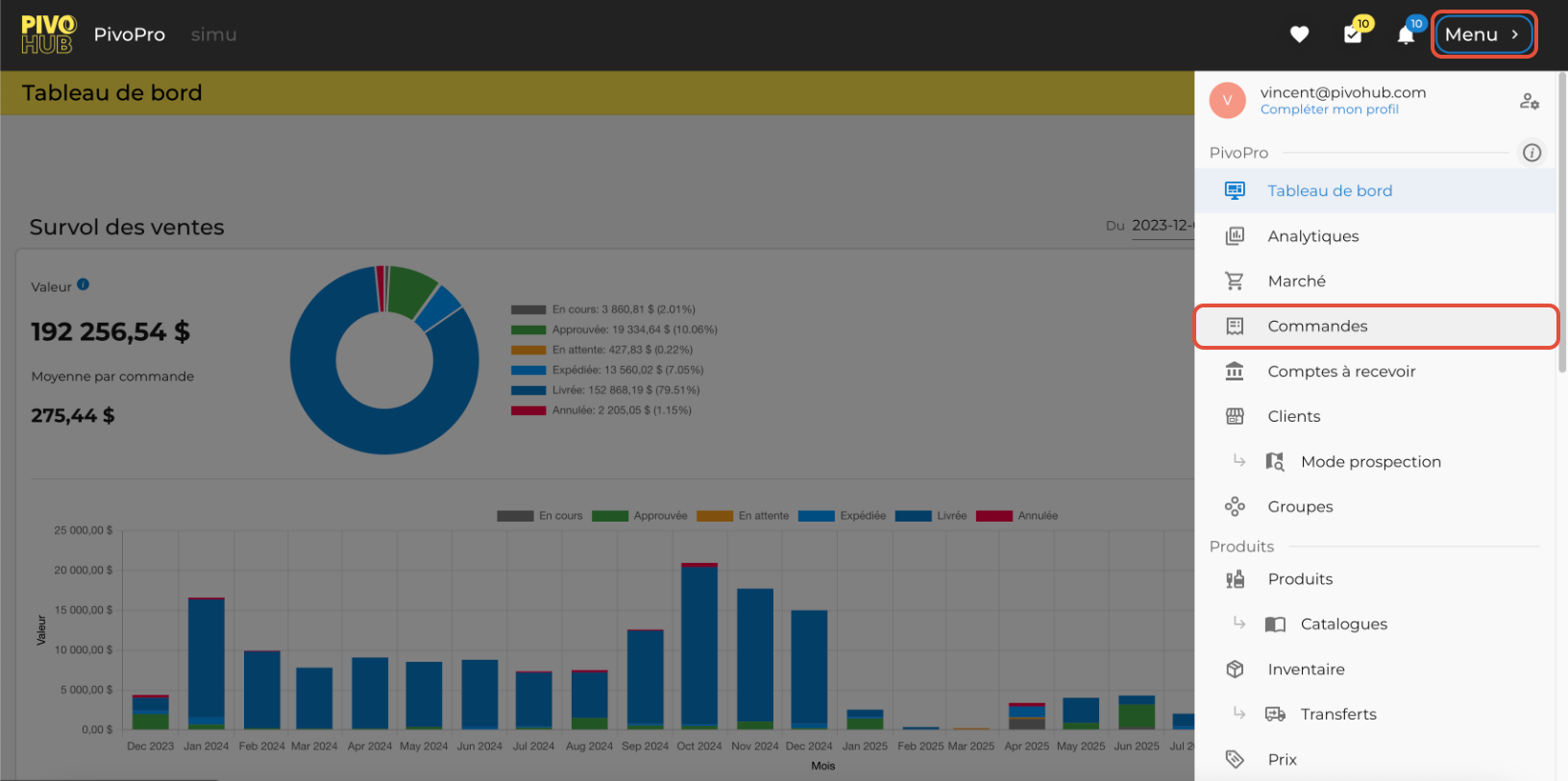
01 On your homepage, click on MENU and select the Order module.
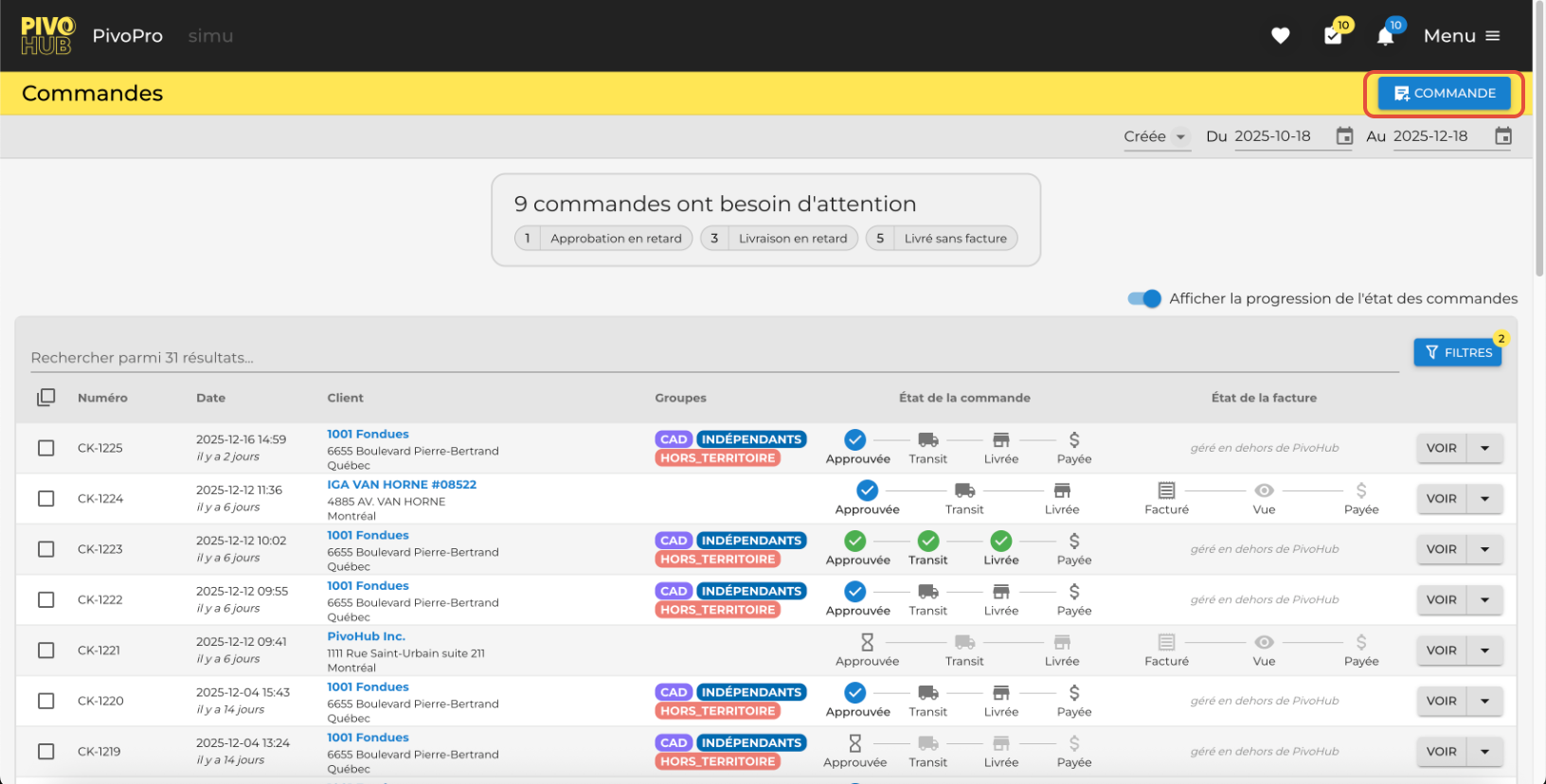
02 In the Order module, click on + Order in the top right corner.
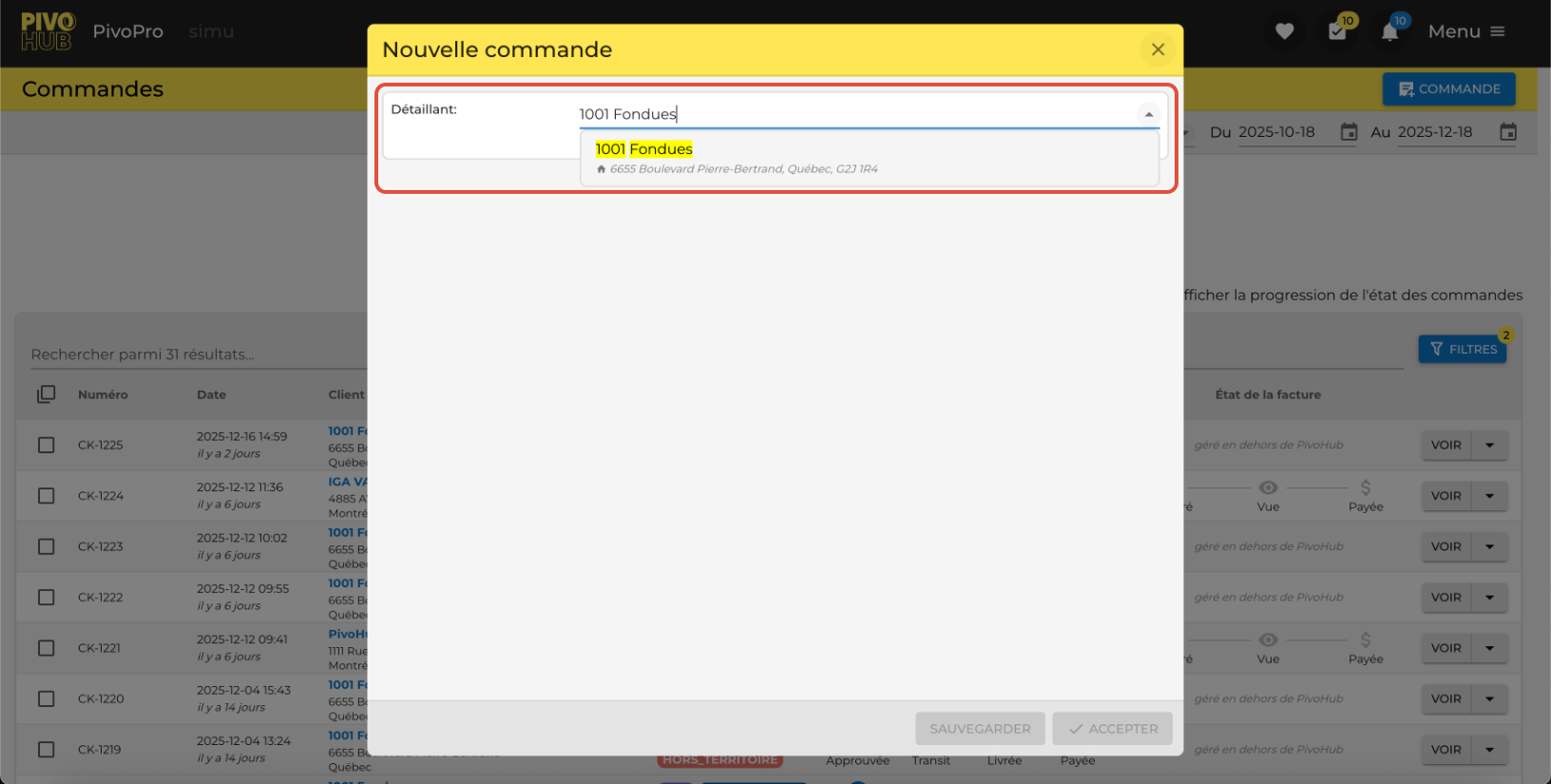
03 Select the client for whom you want to place an order and a return.
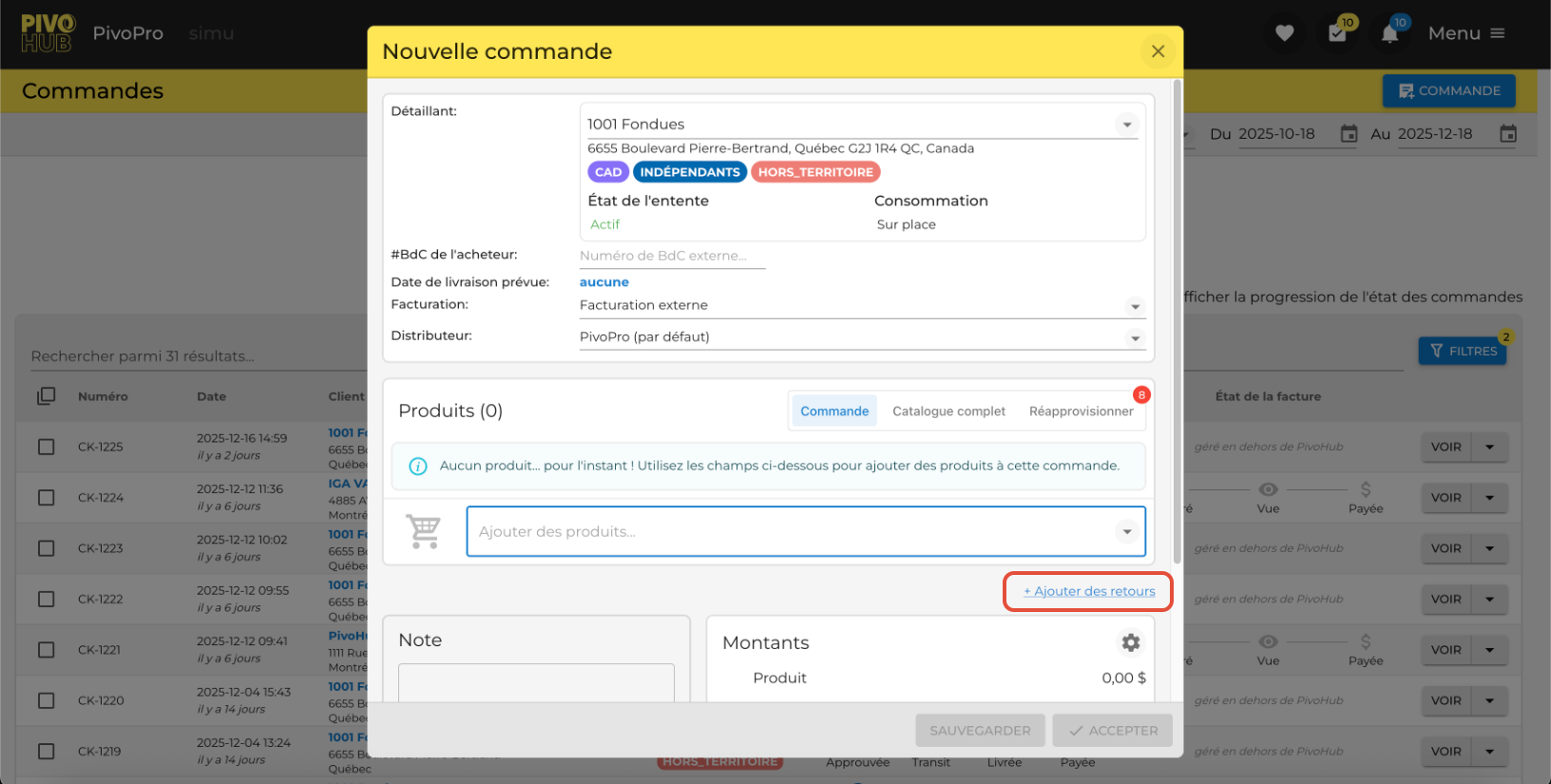
04 Add the returns functionality by clicking on the + Add returns button.
05 Add the product you want to return or refund by choosing the product.
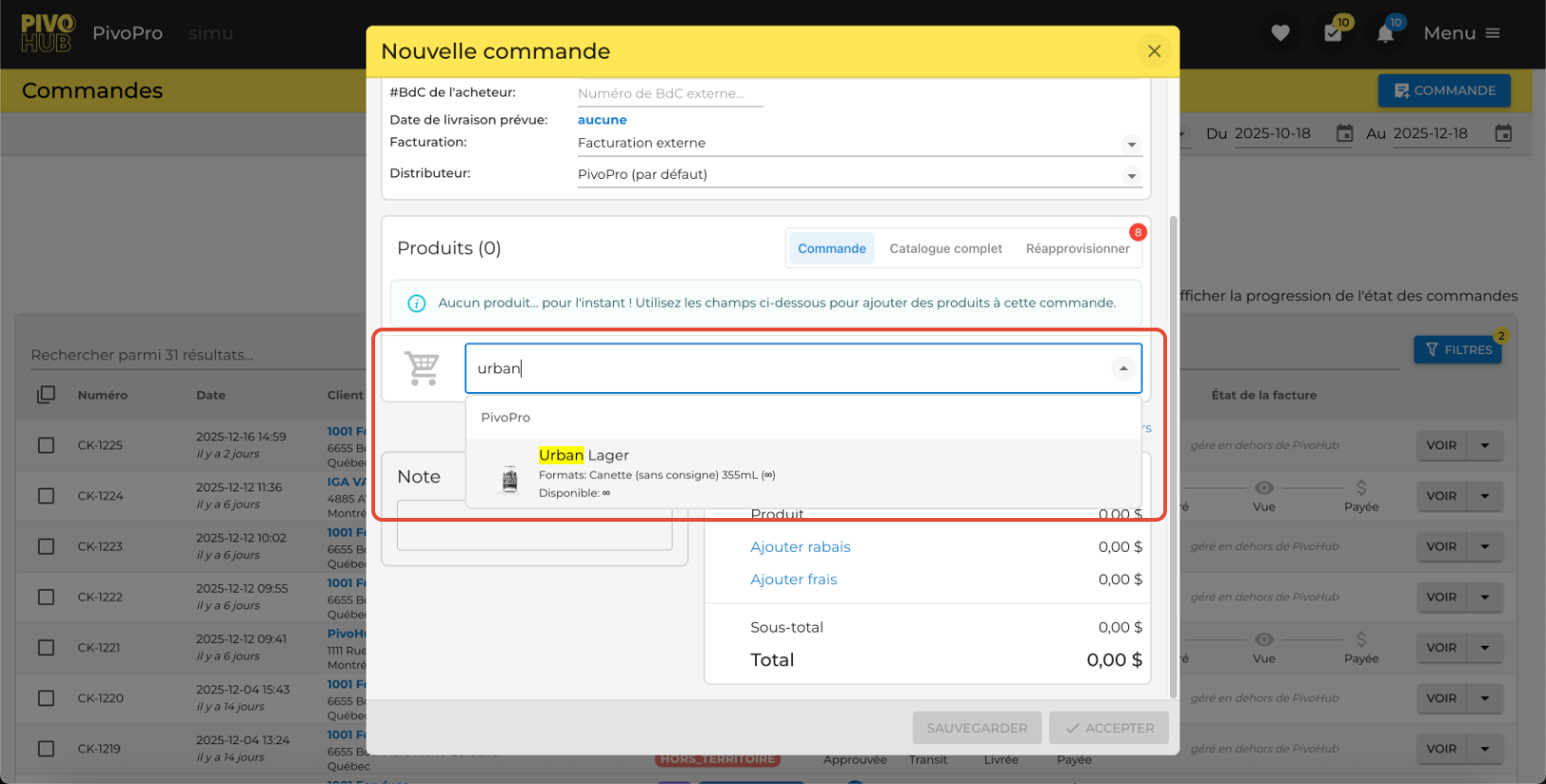
06 Customize the return and credit options to your needs
First, select a reason for the return or credit, and decide if you want this action to result in a pickup by the distributor and affect your inventory. You have the choice to split the case, allowing you to return a unit instead of an entire case, or you can choose to credit just a portion rather than the full amount.

07 To complete the order, save or confirm your choice.
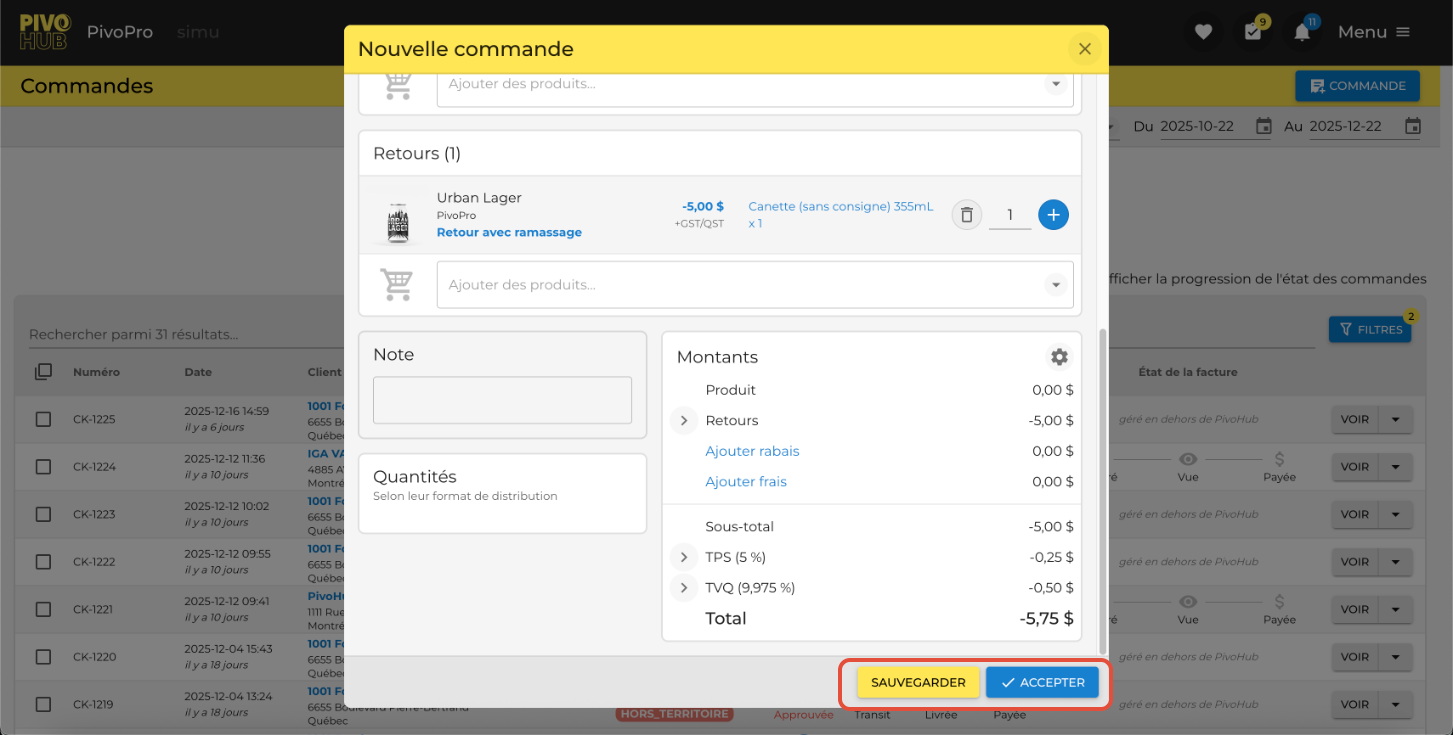
This guide explains how to use the return and credit functions in a command.
Was this article helpful?
That’s Great!
Thank you for your feedback
Sorry! We couldn't be helpful
Thank you for your feedback
Feedback sent
We appreciate your effort and will try to fix the article